

Users can remove unused applications on iOS and Android by selecting the delete or uninstall option within device settings. Apple devices allow users to hide apps in the App Library to clear the home screen, while Android users can disable certain pre-installed system apps to stop them from running.
How do iOS users hide or delete applications?
Apple’s iOS provides two distinct methods for managing application visibility, distinguishing between complete removal and interface obscuration. To remove an application entirely, users can long-press an icon and select “Delete App,” which removes both the software and its associated local data.
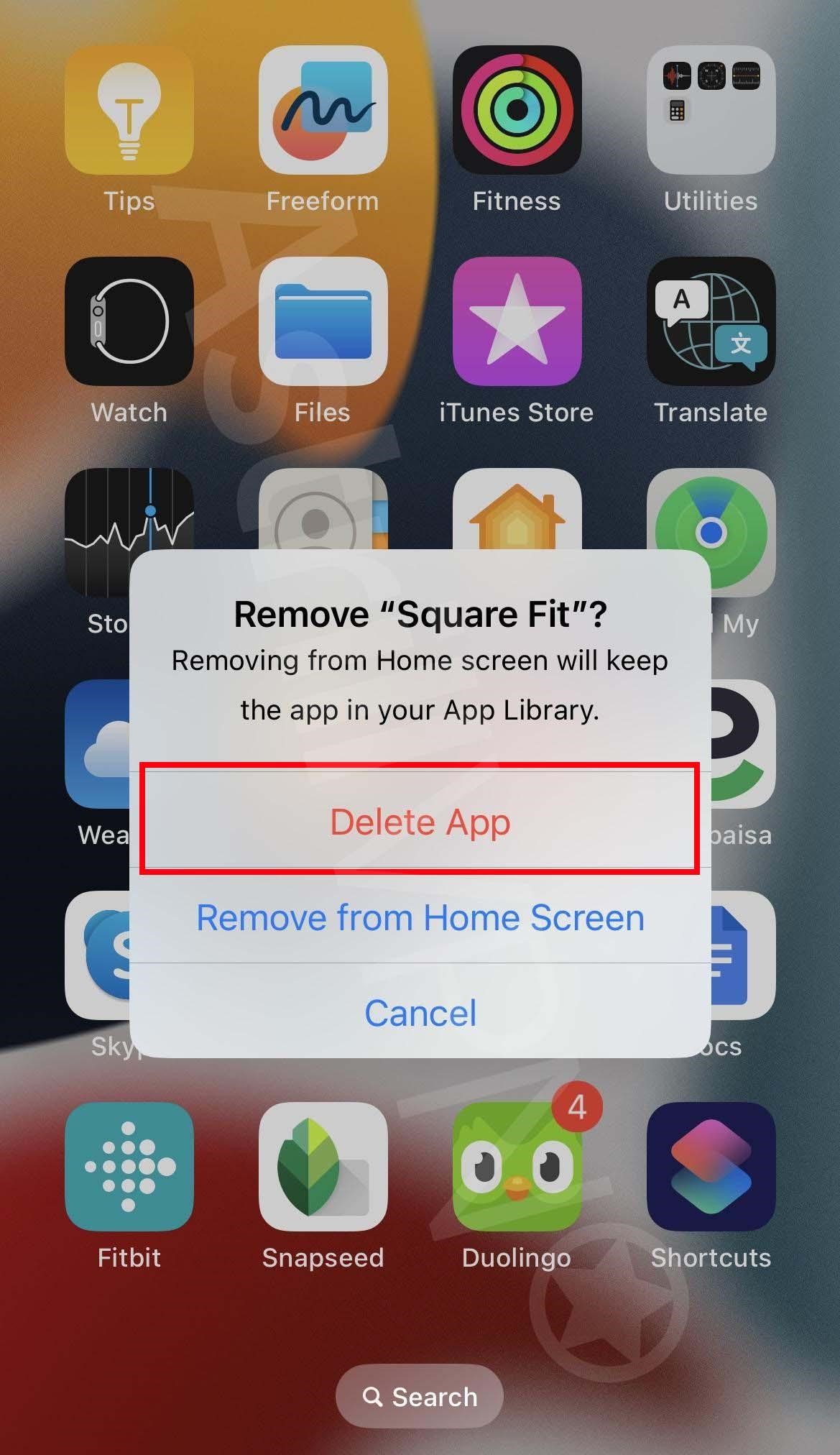
For users who wish to declutter the interface without losing data, the “Remove from Home Screen” option moves the application to the App Library. This centralized repository keeps the software installed and accessible via search or the library tab, but it keeps the primary home screen clear of unused icons. According to Apple’s documentation, this method preserves all user settings and files.
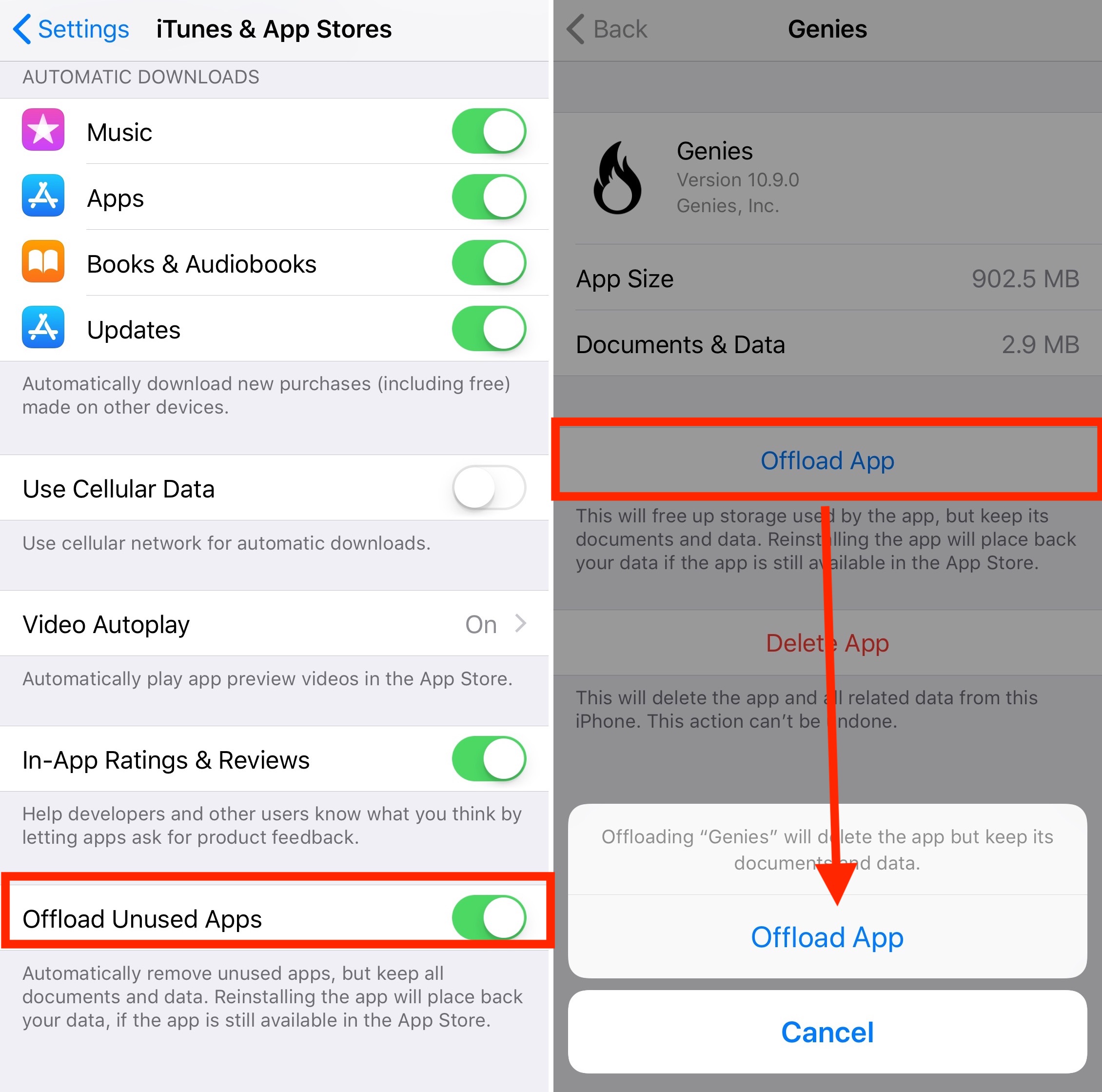
Apple also provides a feature known as “Offload Unused Apps,” which is located within the device’s storage settings. This function automatically removes the application’s binary files to free up space while retaining the user’s documents and data. If a user decides to reinstall an offloaded application, the software is redownloaded, and all previous settings and files are restored automatically.
How does Android handle app removal and disabling?
Android software management protocols vary based on the origin of the application. For third-party software downloaded via the Google Play Store, users can perform a standard uninstall by long-pressing the icon and selecting the uninstall option. This action removes the application and its data from the device’s storage.
The operating system handles pre-installed system applications differently. Because these apps are often tied to the core functionality of the device, the “Uninstall” option is frequently unavailable. Instead, Android provides a “Disable” function. Disabling a system app prevents it from running in the background and hides it from the app drawer, though the application’s files remain on the device’s internal storage. When an app is disabled, it cannot receive updates from the Google Play Store and cannot initiate background processes, effectively placing the software in a dormant state to save resources.
This distinction exists because many system-level applications are integrated into the Android framework and reside on protected partitions of the device’s memory. Disabling these apps allows users to manage “bloatware”—pre-installed software that may not be needed—without attempting to modify the core operating system files, which could lead to system instability.
How can users clear software from Windows and macOS?
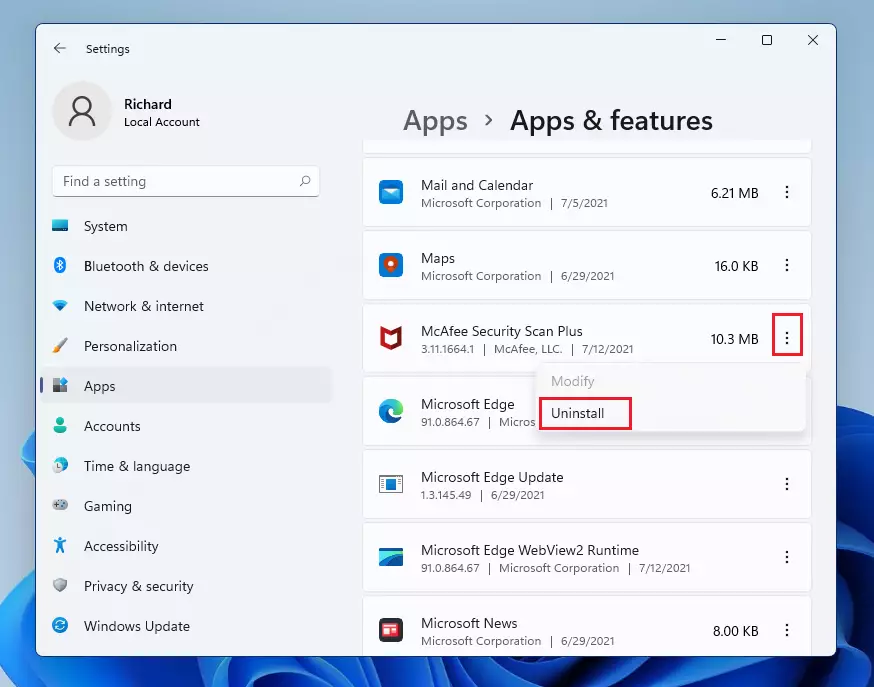
Desktop operating systems, including Windows and macOS, utilize different administrative layers for software oversight. On Windows systems, Microsoft directs users to the “Installed Apps” section within the Settings menu. This interface provides a comprehensive list of all software, allowing users to select “Uninstall” to remove programs. The process differs depending on the application type; software installed through the Microsoft Store is managed directly through this menu, while traditional Win32 desktop applications typically use their own specific uninstallation routines. Some applications also offer “Modify” or “Repair” options, which can resolve software errors without requiring a full deletion. To assist with ongoing maintenance, Windows includes “Storage Sense,” a feature that can be configured to automatically delete temporary files and empty the Recycle Bin to prevent storage saturation.
macOS users manage software through the Finder or the Launchpad. In the Finder, opening the Applications folder allows for the manual removal of software by dragging icons to the Trash. The Launchpad interface offers a similar functionality for applications acquired through the Mac App Store, permitting users to delete them by clicking and holding an icon until an “X” appears. While this removes the primary application, third-party software downloaded from the internet may leave residual files in the user’s Library folder. These files are often located in subdirectories such as Application Support, Caches, or Preferences, and may require manual deletion to fully reclaim storage space.
How does removing apps impact device resources?
The removal of unused software has direct implications for hardware resource allocation, specifically regarding NAND flash storage and volatile memory. Applications occupy physical space on a device’s internal storage. As storage capacity reaches its limit, system performance can degrade due to the lack of space for temporary files and system updates.
NAND flash memory, the technology used in most modern mobile and desktop storage, requires available space to function efficiently. The storage controller performs “garbage collection” to consolidate valid data and clear out blocks containing deleted information. It also performs “wear leveling” to distribute write operations across the flash cells, preventing any single part of the memory from wearing out prematurely. When a device’s storage is near maximum capacity, these background processes are constrained, which can lead to increased latency and slower write speeds.
Removing apps also affects the utilization of random access memory (RAM) and processor cycles. While modern operating systems are designed to manage background tasks efficiently, active applications continue to consume system resources even when not in use. This consumption includes the memory required to hold the application’s state and the CPU cycles required to process background updates or notifications. Removing unnecessary software reduces the number of active processes, which can extend battery life and improve overall system responsiveness.
When a device’s physical RAM is exhausted, the operating system employs a technique called “swapping” or “paging.” This involves using a portion of the internal storage to act as virtual memory to manage active tasks. If the internal storage is nearly full, the system lacks the capacity to effectively create or expand these swap files, which can result in significant latency, application instability, or system-wide freezes.
Find more reporting in our Technology section.
